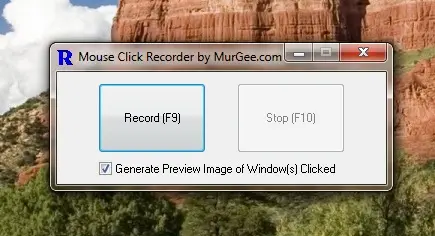
What all can this Mouse Recorder do?
The Software offered here can be useful to automate mouse cursor in many different ways. You can record a Mouse Macro with Mouse Recorder and then edit the Mouse Macro. The Mouse Recorder is really easy and simple to use and comes with two clickable buttons to start and stop the mouse recording. Have a look at given below features which can tell tell you how this software can be of use to you.
- The Mouse Recorder can be used to record single left and right clicks.
- With the supplied editor you can add Double Clicks and Drag and Drop to the recorded mouse macro.
- The Mouse Editor will allow you to disable clicks and only simulate mouse movements. This can be really useful when debugging a recorded mouse macro.
- The recorded mouse macro can be executed step by step.
- You can increase and decrease the execution speed of mouse macro as a whole or even for selected mouse clicks / movements.
- The Mouse Recorder can record a snapshot of the window on which you click, so when looking at the mouse macro, you can easily find out which click clicks what.
- An inbuilt comprehensive help tutorial in the software can guide you about every part of the Mouse Recorder and associated mouse automation functionalities.
- In order to start the mouse recording, launch Mouse Recorder and press F9 or click on the start button, similarily to stop the mouse recording just press the key F10 or click on the stop button.
- You can even add keyboard typing into the recorded mouse macro using the Mouse Recorder.
Mouse Recorder Download
Now you can download the software and try it for free or visit Auto Mouse Clicker to know more about the software application. Just remember that there are no reminders or popup windows in the software to tell you when your software trial is going to expire and yes as the Mouse Recorder software is provided on a try before buy basis, it will expire and will ask you to register, however the best part is that it comes at really cheap and affordable price.